
Component State
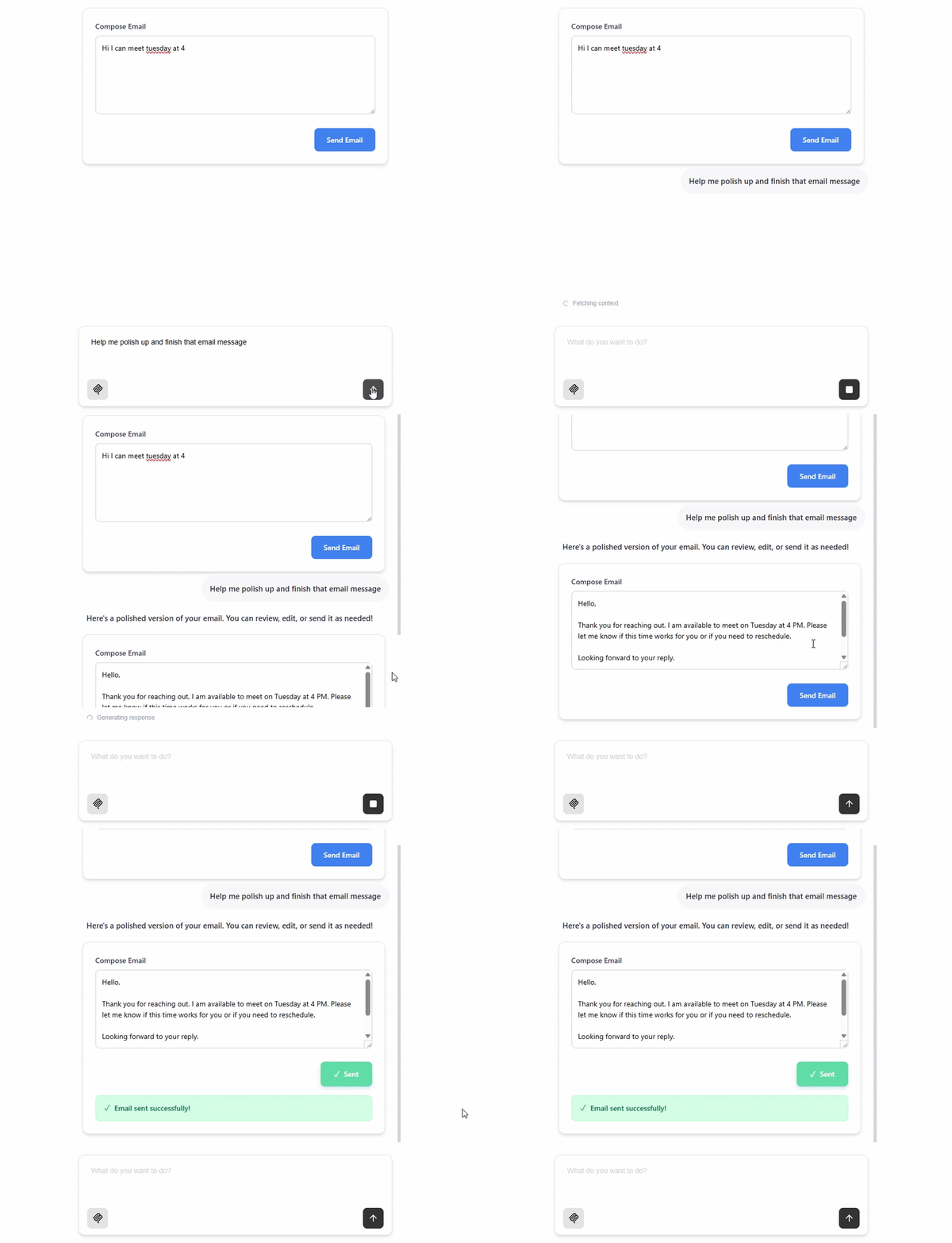
Pass component state to Tambo as context for following user messages.
Replace useState with useTamboComponentState to give Tambo visibility into your component's state. This does two things:
- AI visibility - State is included in follow-up message context, so Tambo can respond to "edit what I typed" requests
- Rehydration - State persists when re-rendering thread history
Regular useState keeps data private from the AI and won't persist across thread re-renders.
Tracking State with useTamboComponentState
Consider this simple React component that allows a user to update an emailBody field, and tracks whether the email has been sent:
export const EmailSender = () => {
  ...
  const [emailBody, setEmailBody] = useState("") // tracks the message being typed
  const [isSent, setIsSent] = useState(false) // tracks whether the 'send' button has been clicked
  ...
}
If Tambo renders this component and the user edits the emailBody field, Tambo will not know about the edit. A following user message like "Help me edit what I've typed so far" will not generate a relevant response.
To allow Tambo to see these state values, simply replace useState with useTamboComponentState, and pass a keyName for each value:
import { useTamboComponentState } from "@tambo-ai/react";

export const EmailSender = () => {
  ...
  const [emailBody, setEmailBody] = useTamboComponentState("emailBody", "");
  const [isSent, setIsSent] = useTamboComponentState("isSent", false);
  ...
}
Now tambo will know the current values of emailBody and isSent.
Updating editable state from props
Often when we have an editable state value, like the emailBody above, we want Tambo to be able to generate and stream in the initial value. If a user sends "Help me generate an email asking about a good time to meet," Tambo should be able to fill in the value with relevant text, and then the user should be able to edit it.
When using useState this can be done by adding a useEffect that updates the state value with prop value changes:
export const EmailSender = ({ initialEmailBody }: { initialEmailBody: string }) => {
  ...
  const [emailBody, setEmailBody] = useState("") // tracks the message being typed
  const [isSent, setIsSent] = useState(false) // tracks whether the 'send' button has been clicked

  useEffect(() => {
    setEmailBody(initialEmailBody)
  }, [initialEmailBody])
  ...
}
However, when using useTamboComponentState, this pattern will cause the initial prop value to overwrite the latest stored state value when re-rendering a previously generated component.
Instead, use the setFromProp parameter of useTamboComponentState to specify a prop value that should be used to set the initial state value:
export const EmailSender = ({ initialEmailBody }: { initialEmailBody: string }) => {
  ...
  const [emailBody, setEmailBody] = useTamboComponentState("emailBody", "", initialEmailBody) // tracks the message being typed, and sets initial value from the prop
  const [isSent, setIsSent] = useTamboComponentState("isSent", false) // tracks whether the 'send' button has been clicked
  ...
}
Streaming Components
When building components that receive streamed AI props and become editable,
combine setFromProp with useTamboStreamStatus to disable inputs during
streaming:
import { useTamboComponentState, useTamboStreamStatus } from "@tambo-ai/react";

export const EmailSender = ({
  initialEmailBody,
}: {
  initialEmailBody: string;
}) => {
  const { streamStatus } = useTamboStreamStatus();

  // Seed state from prop, user edits take precedence after streaming
  const [emailBody, setEmailBody] = useTamboComponentState(
    "emailBody",
    "",
    initialEmailBody,
  );

  return (
    <textarea
      value={emailBody}
      onChange={(e) => setEmailBody(e.target.value)}
      disabled={streamStatus.isStreaming} // Prevent edits while AI is generating
    />
  );
};
For complete patterns including error handling and complex state, see Streaming Best Practices.