
Resources
Access and reference data from MCP servers in your application
Resources allow MCP servers to expose data sources and content that can be dynamically accessed and referenced in conversations. This enables users to pull in context from external services, files, or databases without manually copying and pasting content.
For more details on the resources specification, see the MCP Resources documentation.
What are Resources?
Resources are data sources exposed by MCP servers that users can reference in their messages. This is useful when:
- An MCP server provides access to external data (issues, documents, files, etc.)
- You want users to easily include context from external services
- Content needs to be dynamically fetched and included in AI conversations
For example, a Linear MCP server might expose issues as resources (linear:issue://TAM-123), allowing users to reference specific issues in their conversations with the AI. The exact URI scheme (such as issue://...) is defined by the MCP server implementation.
User Experience
Using the "@" Mention
Type "@" directly in the message input to search for resources:
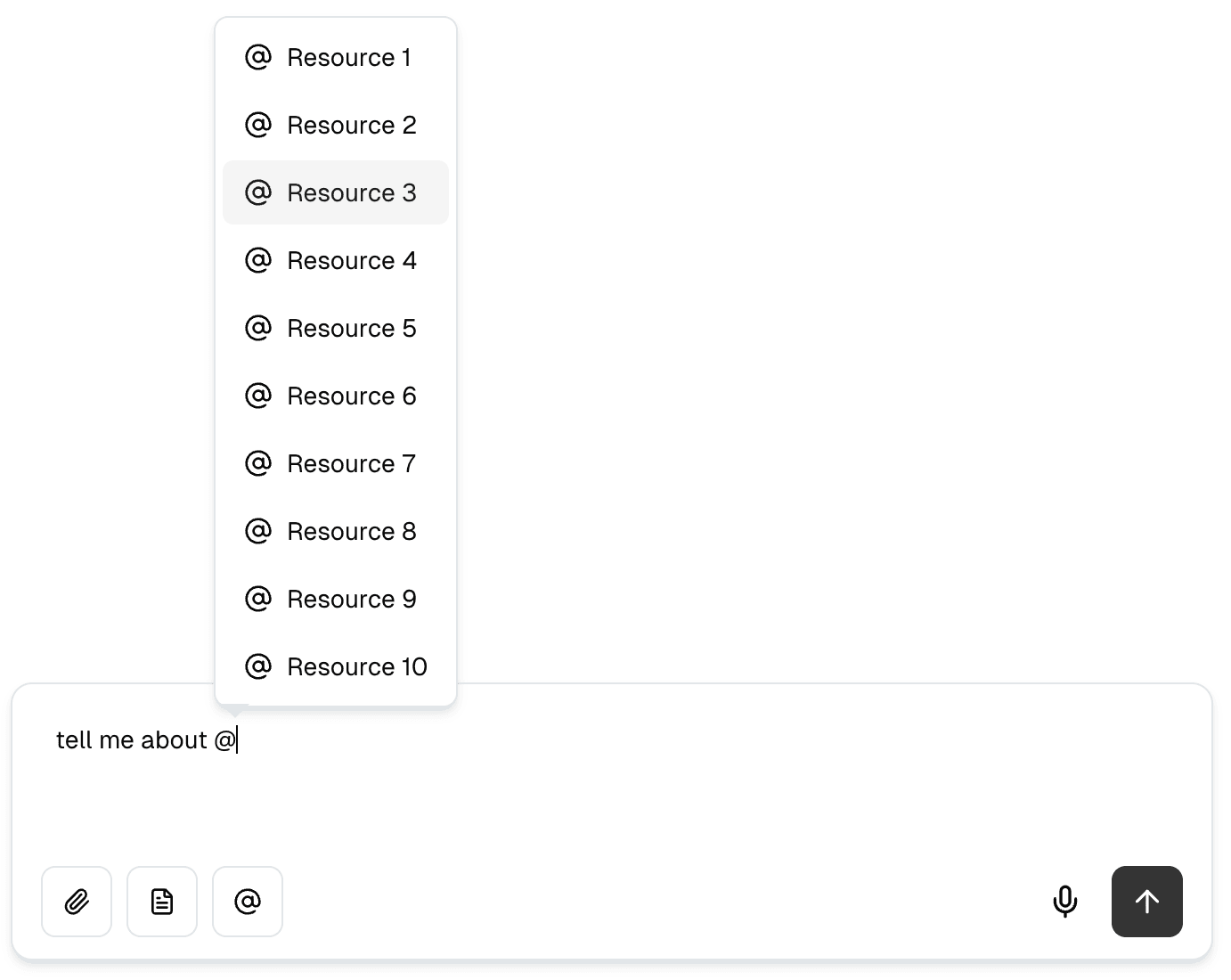
- Type "@" anywhere in the message input
- A dropdown appears showing all available resources
- Type to filter resources by name
- Use arrow keys to navigate and Enter to select
- The selected resource reference is inserted as
@resourceUri
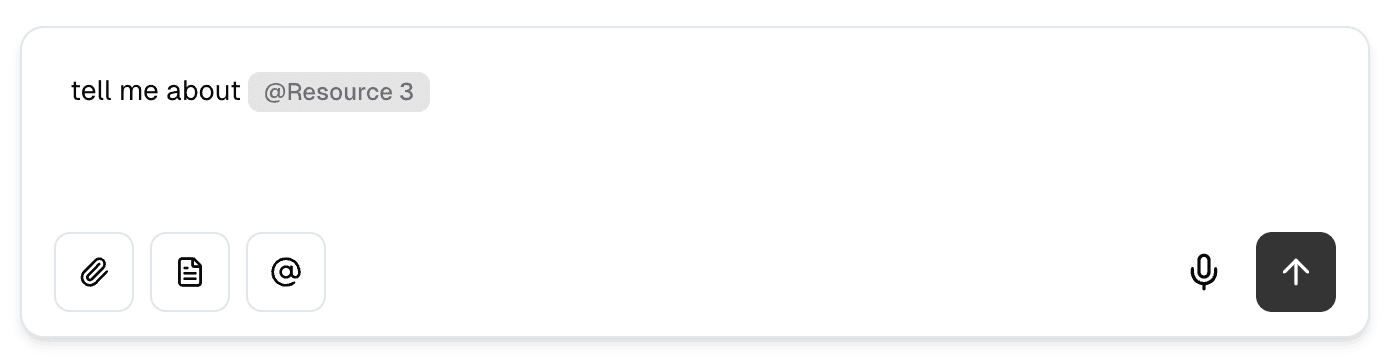
After selecting a resource, it appears as a mention in the message:
Using the Resources Button
Alternatively, click the resources button to browse available resources:

When resources are available, an @ icon appears in the message input area. Click it to browse and select resources:
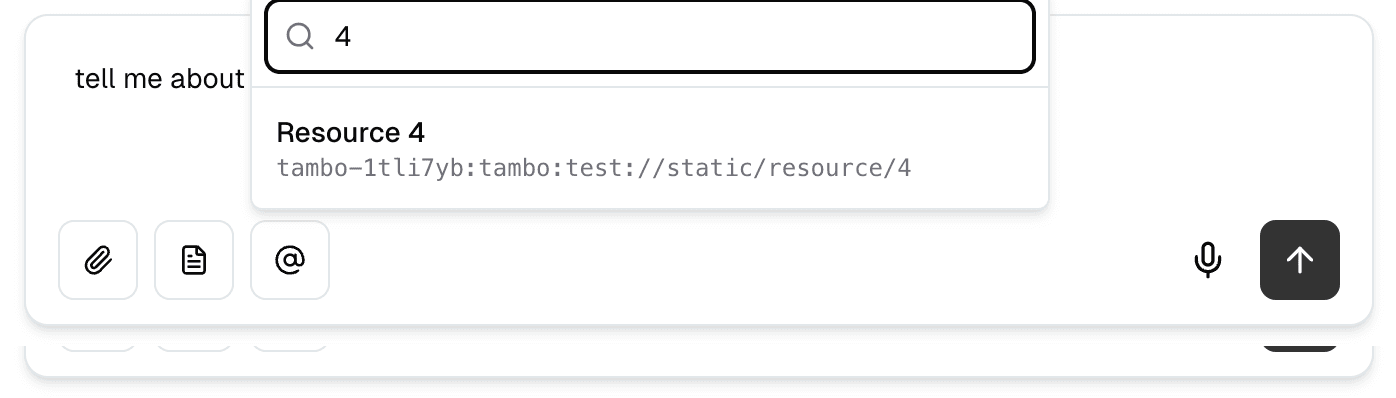
- Click the @ button to open the resource picker
- A dropdown appears showing all available resources
- Resources are organized by MCP server
- Type to search and filter resources by name
- Select a resource to insert its reference into the message input
Built-in Support
The message-input component automatically supports resource selection and insertion from all connected MCP servers:
import { MessageInput } from "@/components/ui/message-input";

// Resources are automatically supported - no additional setup needed
<MessageInput>
  <MessageInput.Textarea />
  <MessageInput.McpResourceButton />
  <MessageInput.SubmitButton />
</MessageInput>;
Resources can be inserted two ways:
- Button Selection: Click the resource button (@) to browse and select available resources
- @ Mentions: Type "@" in the message input to search and insert resources inline
Resource Reference Syntax
When a user selects a resource, it's inserted into the message with the syntax @<resourceUri>. Resources are always prefixed to identify which MCP server they come from.
Prefix Structure
The prefix structure differs between server-side and client-side MCP connections:
Server-Side MCP Resources
Server-side resources have a double prefix (client-side serverKey + server-side prefix):
@<serverKey>:<serverSidePrefix>:<resourceUri>Example: @linear:tambo:issue://TAM-123
linearis the client-sideserverKeyfor this MCP server instancetambois the server-side prefix configured in your project's MCP configurationissue://TAM-123is the actual resource URI from the MCP server
The server-side prefix is configured in your Tambo Cloud project settings for each MCP server connection. This additional layer helps distinguish between different environments or projects using the same MCP server.
Client-Side MCP Resources
Client-side resources have a single prefix (the serverKey):
@<serverKey>:<resourceUri>Example: @linear:issue://TAM-123
linearis theserverKeyconfigured in the client-side MCP server definitionissue://TAM-123is the actual resource URI from the MCP server
Configure the serverKey when setting up the MCP server:
<TamboProvider
  mcpServers={[
    {
      url: "http://localhost:8123/",
      serverKey: "linear", // This becomes the resource prefix (use env-specific keys like "linear-staging" in multi-env setups)
      transport: MCPTransport.HTTP,
    },
  ]}
>
  <App />
</TamboProvider>
If you don't specify serverKey, Tambo derives one from the URL (e.g., https://mcp.linear.app/mcp becomes linear).
Server-Side vs Client-Side Resources
How resources are processed depends on where the MCP server is connected:
Server-Side Resources
When using server-side MCP connections:
- The resource reference is sent to the Tambo API (not the content)
- The server fetches the resource from the MCP server
- The resource content is inserted into the prompt server-side
- The AI receives the full resource content in the conversation
This approach is better for resources that:
- Require server-side authentication (OAuth, API keys)
- Are large or vary in size
- Should be fetched at request time for freshness
Client-Side Resources
When using client-side MCP connections:
- The resource is fetched on the client (in the browser)
- The full resource content is injected into the prompt
- The complete resource content is sent to the Tambo API
- The AI receives the full resource content in the conversation
This approach works well for resources that:
- Are accessible from the browser
- Don't require server-side authentication
- Are reasonably sized (won't exceed token limits)
Provider Compatibility
Resources are automatically formatted in a way that's compatible with the AI provider being used (OpenAI, Anthropic, Google, etc.). Tambo handles the conversion internally.
How Resource Selection Works
Here's the flow when a user selects a resource:
Resource Processing Flow
After a message with a resource reference is submitted, the processing differs based on connection type:
Server-Side MCP Processing:
Client-Side MCP Processing:
Programmatic Access
You can access Resources programmatically using the provided hooks:
List All Resources
Use useTamboMcpResourceList to get all available resources from connected servers:
import { useTamboMcpResourceList } from "@tambo-ai/react/mcp";

function ResourceList() {
  const { data: resources, isLoading, error } = useTamboMcpResourceList();

  if (isLoading) return <div>Loading resources...</div>;
  if (error) return <div>Error loading resources</div>;

  return (
    <ul>
      {resources?.map((entry) => (
        <li key={entry.resource.uri}>
          <strong>{entry.resource.name}</strong>
          {entry.resource.description && <p>{entry.resource.description}</p>}
          <small>URI: {entry.resource.uri}</small>
          <small>From: {entry.server.name}</small>
        </li>
      ))}
    </ul>
  );
}
The hook returns an array of ListResourceEntry objects, each containing:
server- The connected MCP server providing this resourceresource- The resource metadata (uri, name, description, mimeType)
Note: The resource.uri field is the Tambo-prefixed resource identifier: it includes both the client-side serverKey and server-side prefix for server-side resources (e.g., linear:tambo:issue://TAM-123), or just the client-side serverKey prefix for client-side resources (e.g., linear:issue://TAM-123). This is the same value that appears in the message after @.
Get Specific Resource
Use useTamboMcpResource to fetch a specific resource's content:
import { useTamboMcpResource } from "@tambo-ai/react/mcp";

function ResourceContent({ resourceUri }: { resourceUri: string }) {
  // resourceUri should include the prefix(es) (e.g., "linear:issue://TAM-123")
  const {
    data: resourceData,
    isLoading,
    error,
  } = useTamboMcpResource(resourceUri);

  if (isLoading) return <div>Loading...</div>;
  if (error) return <div>Error loading resource</div>;
  if (!resourceData) return null;

  return (
    <div>
      {resourceData.contents.map((content, idx) => (
        <div key={idx}>
          {content.mimeType && <small>Type: {content.mimeType}</small>}
          {content.text && <pre>{content.text}</pre>}
          {content.blob && (
            <div>Binary content ({content.blob.length} bytes)</div>
          )}
        </div>
      ))}
    </div>
  );
}
The hook accepts:
resourceUri- The URI of the resource to fetch (e.g.,"linear:issue://TAM-123")
In these examples, issue://TAM-123 is just a sample scheme; your MCP server defines the actual URI scheme and path format.
The returned data contains:
contents- Array of resource content items (text or blob)- Each content item has
uri,mimeType, and eithertextorblob
Connection Type Support
Resources work with both connection types:
- Server-side MCP - ✅ Fully supported (recommended)
- Client-side MCP - ✅ Fully supported
Both connection types can expose resources that will appear in the resource picker. The key difference is where the resource content is fetched (client vs server).
Example Use Cases
Issue Tracking Systems
A Linear or Jira MCP server provides resources for issues and tickets:
- Reference specific issues in conversations
- Pull in issue details, comments, and status
- Let AI analyze and suggest actions based on issue content
File Systems
A file system MCP server exposes files and folders as resources:
- Reference project files in code discussions
- Include configuration files for analysis
- Pull in documentation for context
Knowledge Bases
A documentation or wiki MCP server provides articles as resources:
- Reference internal documentation
- Include help articles for context
- Pull in knowledge base entries for AI to reference
CRM and Customer Data
A CRM MCP server exposes customer records as resources:
- Reference customer profiles in support conversations
- Include account history for context
- Pull in interaction logs for analysis
Best Practices
Resource Naming
- Use descriptive resource names that users can easily identify
- Include relevant metadata (issue number, file path, etc.)
- Keep names concise but informative
Resource Size
- Be mindful of resource size, especially with client-side MCP
- Large resources can impact performance and token usage
- Consider summarizing or truncating large content
Security and Privacy
- Only expose resources that users should have access to
- Implement proper authentication and authorization
- Be careful with sensitive data in resource content
Caching
- Resources are cached by Tambo for performance
- Consider cache invalidation strategies for frequently changing data
- Use resource URIs that reflect versioning if needed